Travel
Trip requests, flight booking and domestic hotel booking.
See travel
An employee files an expense claim from the app, the web or WhatsApp. The receipt is read automatically, the claim is checked against your policy, and it goes for approval.
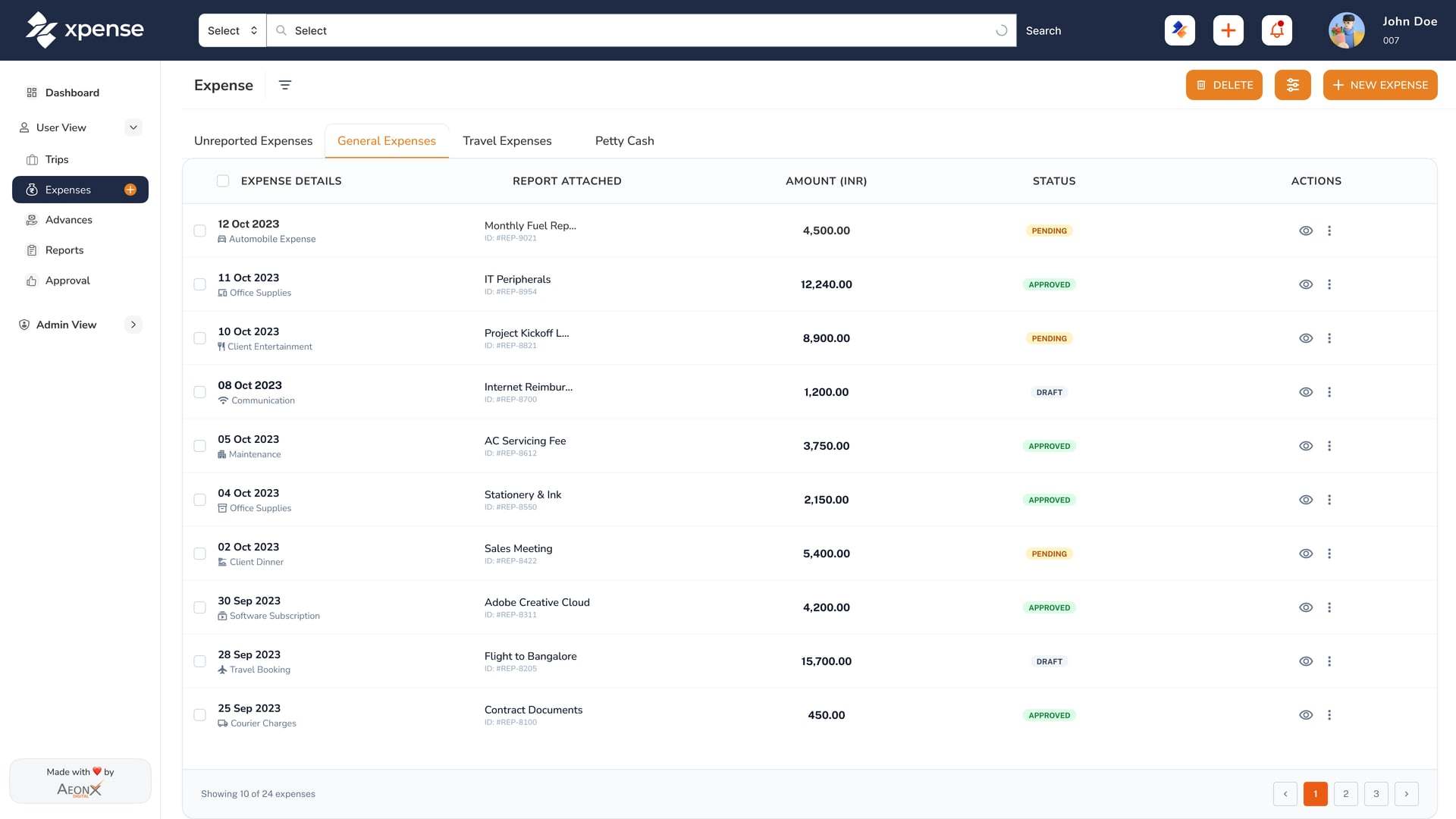
Take a photo of the receipt in the app, or send it on WhatsApp.
The receipt is read automatically, and a duplicate is flagged.
On submission the claim is checked against your policy.
The approver gets the request, also on WhatsApp with a link.
In the app the employee picks the category, enters the amount and attaches the receipt. On WhatsApp they type what they spent, or send a photo of the receipt and it is read for them.
The video shows an expense filed from a WhatsApp chat, with demo data.
Receipts are read automatically using OCR. The employee looks over what was read, corrects anything that is wrong and submits.
Duplicate detection runs on receipts. When a receipt matches one that was already submitted, the claim is flagged.
Receipt reading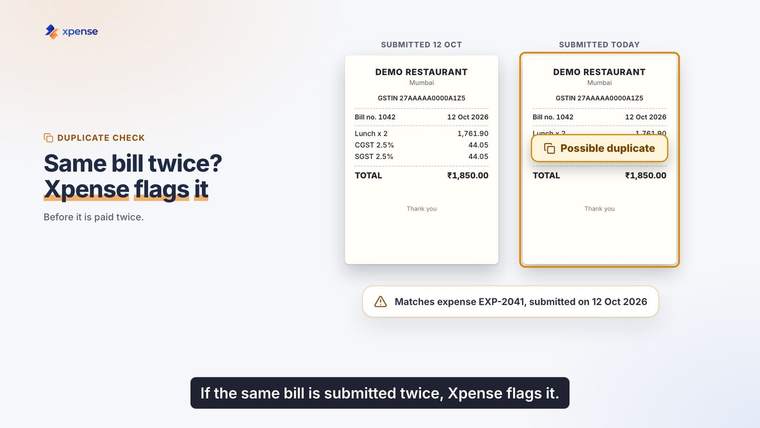
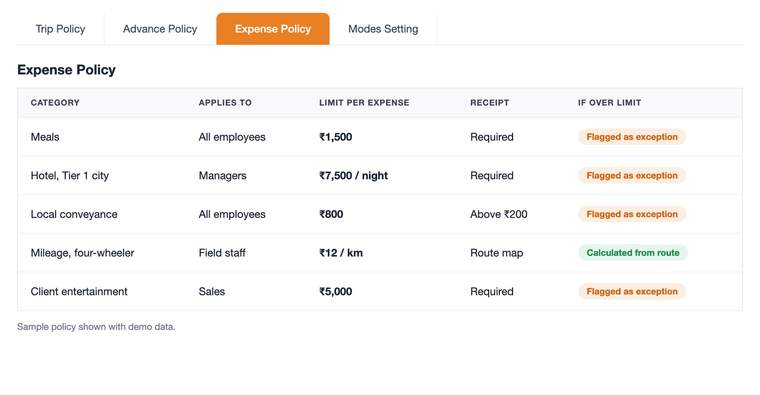
You set up the expense policy in Xpense. Every claim is checked against it when it is submitted, before an approver sees it.
The check is rule-based. Mileage is not typed in as an amount: it is calculated from the route and the rate for the vehicle.
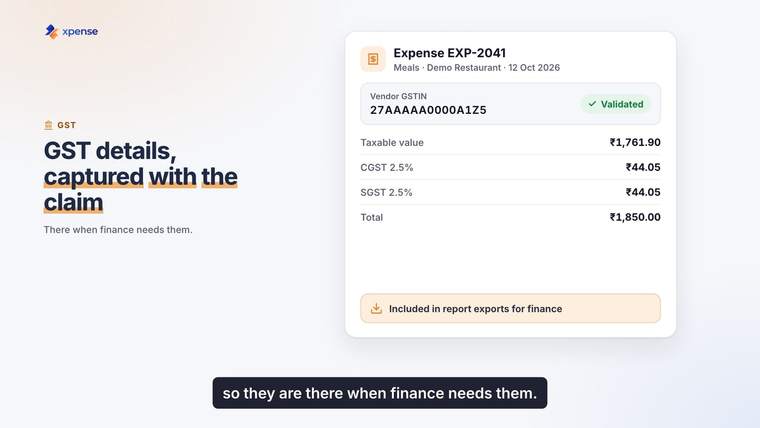
GST details are captured and validated when the claim is submitted, and they are included in report exports.
HSN and TDS masters are maintained in Xpense.
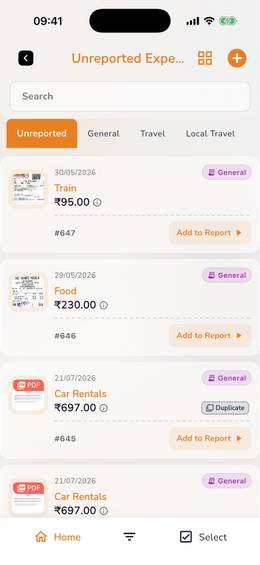
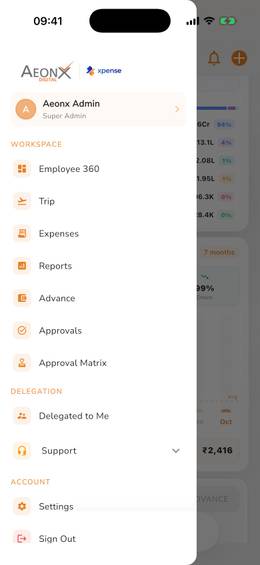
From the mobile app, from the web, or by chatting on WhatsApp. On WhatsApp they can type what they spent or send a photo of the receipt.
Yes. Receipts are read automatically using OCR. The employee checks what was read and submits the claim.
Receipt reading includes duplicate detection, so a receipt that matches one already submitted is flagged.
Mileage is calculated from the route and the rate for your vehicle.
Yes. GST details are captured and validated when the claim is submitted, and they are included in report exports. HSN and TDS masters are maintained in Xpense.
Yes. An employee can file an expense by WhatsApp chat. If they send a photo of the receipt, it is read for them.